Getting Started
Getting Started
Your first five minutes with KVault: create a Cloudflare API token, add your account, and start browsing namespaces. Everything you edit stays in sync with Cloudflare — nothing lives only on your machine.
Create a Cloudflare API token
KVault talks to the Cloudflare API on your behalf, so it needs a token with permission to read and write Workers KV. Head to the Cloudflare API Tokens page and click Create Token, then pick the Create Custom Token template.
Configure the token like this:
- Required permission:
Account→Workers KV Storage→Edit. This lets KVault list namespaces and read, write, and delete keys. - Optional permission:
Account→Account Settings→Read. Useful if you want KVault to show a friendlier account name. - Account resources: scope the token to the specific account(s) you want KVault to see — not All accounts — so the token's blast radius matches its job.
Click Continue to summary, then Create Token, and copy the value. Cloudflare will only show it once.
Add the account in KVault
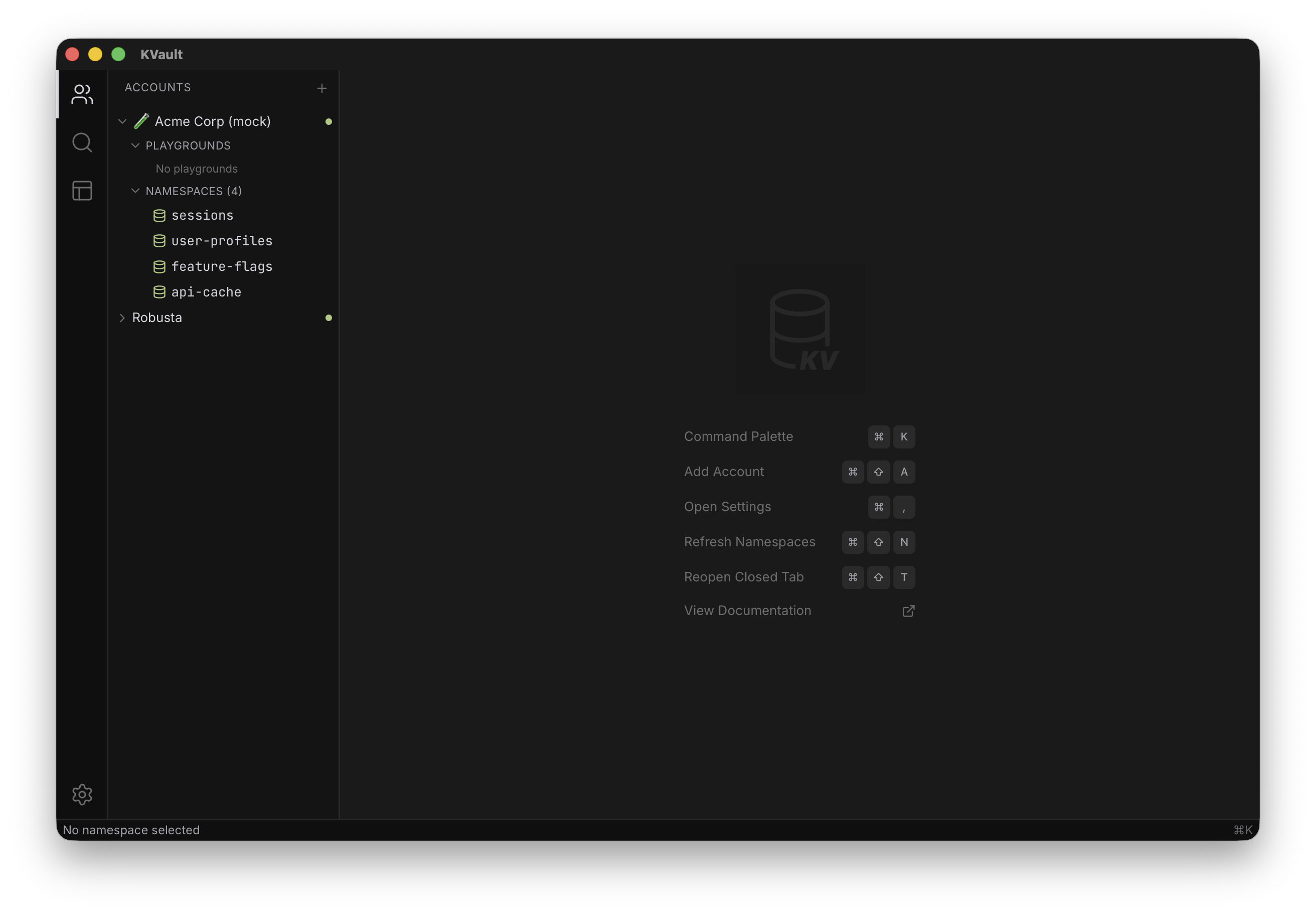
Open KVault. Press Cmd+Shift+A (or click Add Account in the sidebar) to open the account dialog. Give the account a friendly name — this is how it will appear in KVault's sidebar — and paste the token you just copied.
KVault validates the token against the Cloudflare API and, on success, pulls the list of namespaces for the account. You'll see them appear under the account name immediately.
Browse a namespace
Click an account in the sidebar to expand it and reveal its namespaces. Click any namespace to open it as a tab. KVault starts syncing that namespace's key names in the background — you'll see a progress indicator as keys stream in.
Key names are cached locally in SQLite so that listing, filtering, and search stay instant and work offline. Key values are always fetched on-demand from Cloudflare when you open a key, so what you see is always fresh.
Open a key
Click any key in the list to open it in the editor. A single click opens the key as a preview tab — the italicized tab is reused when you click the next key, so you don't end up with dozens of tabs while you browse.
To keep a key open, double-click it in the list, or drag the preview tab to pin it as a permanent tab. Permanent tabs stay put until you close them.
Edit a value
The code editor is full-featured — type, paste, or format as you would in VS Code, with syntax highlighting, IntelliSense, and multi-cursor. The moment a value is dirty, KVault shows a dot on the tab title so you know there are unsaved changes.
Save with Cmd+S. KVault writes the value to Cloudflare and clears the dirty indicator. If the write fails (a network blip, a revoked token), the tab stays dirty and you can retry.