Features
Code Editor
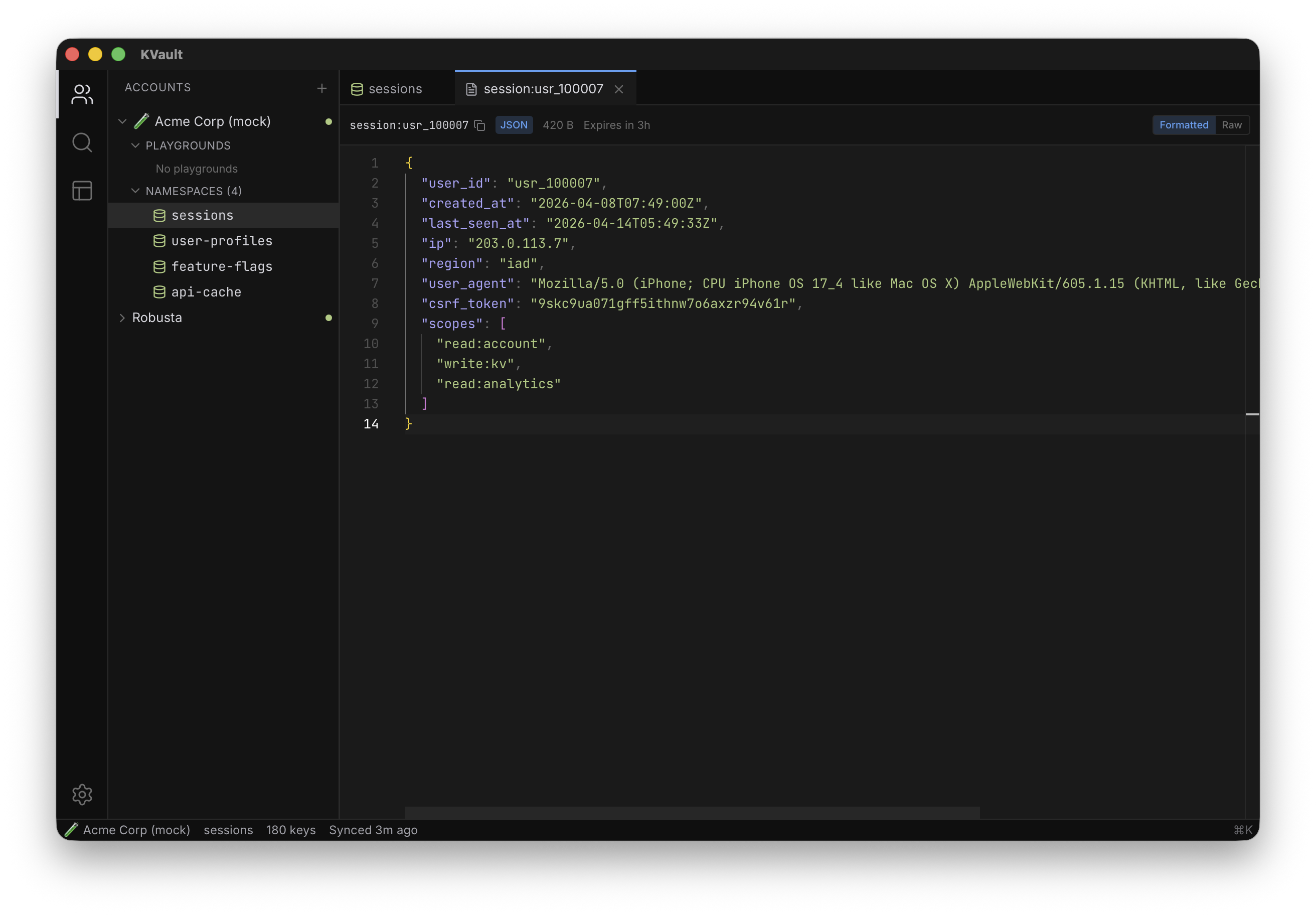
View and edit values in a full code editor — syntax highlighting, IntelliSense, multi-cursor, find-in-file, JSON auto-format, dirty-state tracking, and save with Cmd+S.
Overview
Every text value opens in a full code editor with syntax highlighting, bracket matching, find-and-replace, multi-cursor editing, and the shortcuts you already know from VS Code. When KVault detects a value is valid JSON, it switches to JSON mode, formats the value, and offers a Formatted/Raw toggle so you can flip between a pretty view and the exact bytes on disk.
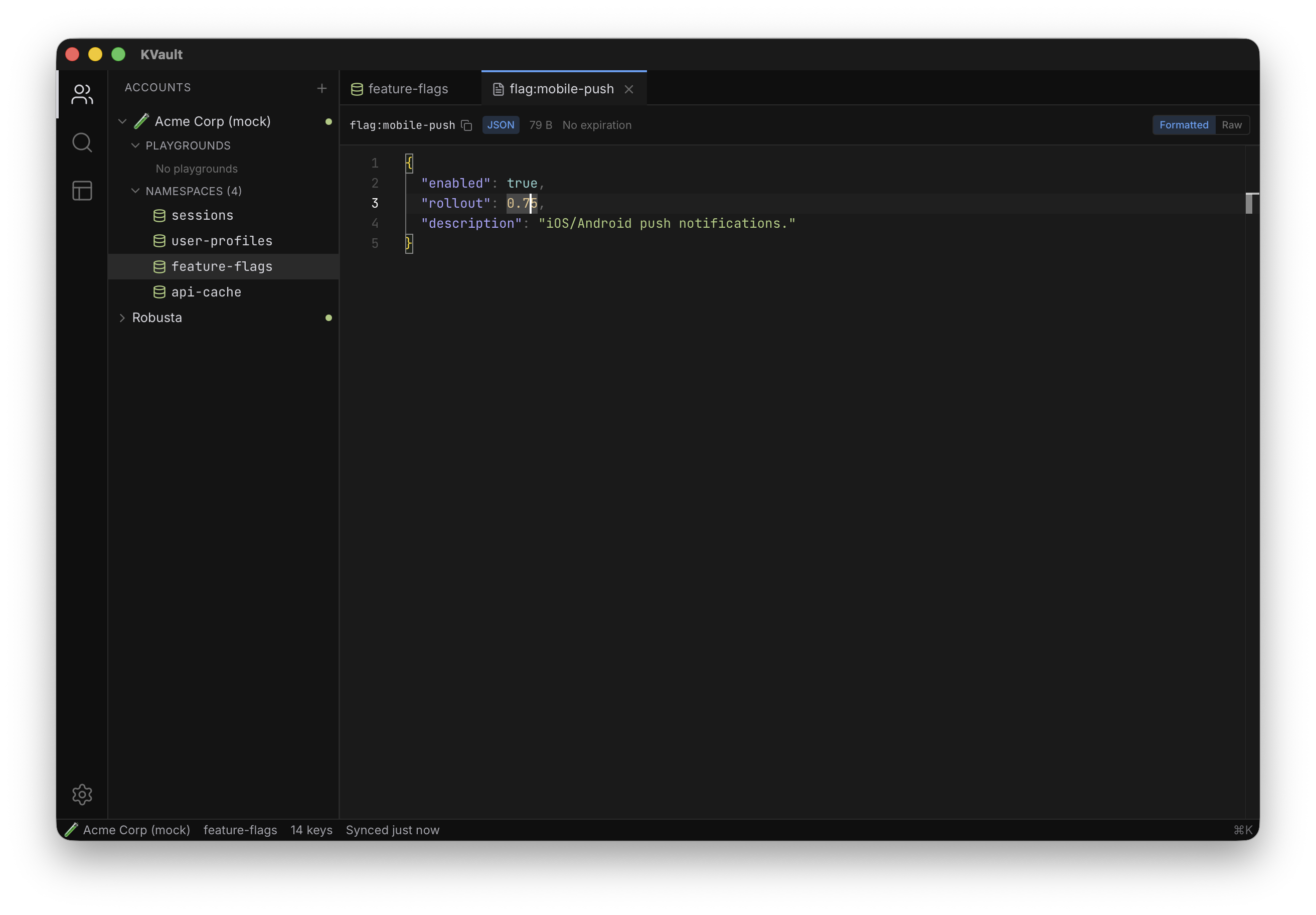
Editor state is tracked per key: if you make changes and switch tabs, the value stays dirty until you save or revert. Dirty tabs show a small dot in the tab strip so you never lose track of an open edit.
How to use it
Click any key to open its value in a new tab. Edit inline — the editor highlights syntax, validates JSON, and surfaces errors in the gutter. Use the Formatted/Raw toggle if KVault pretty-prints your JSON and you need to see the exact stored bytes (for example, to preserve key ordering or whitespace).
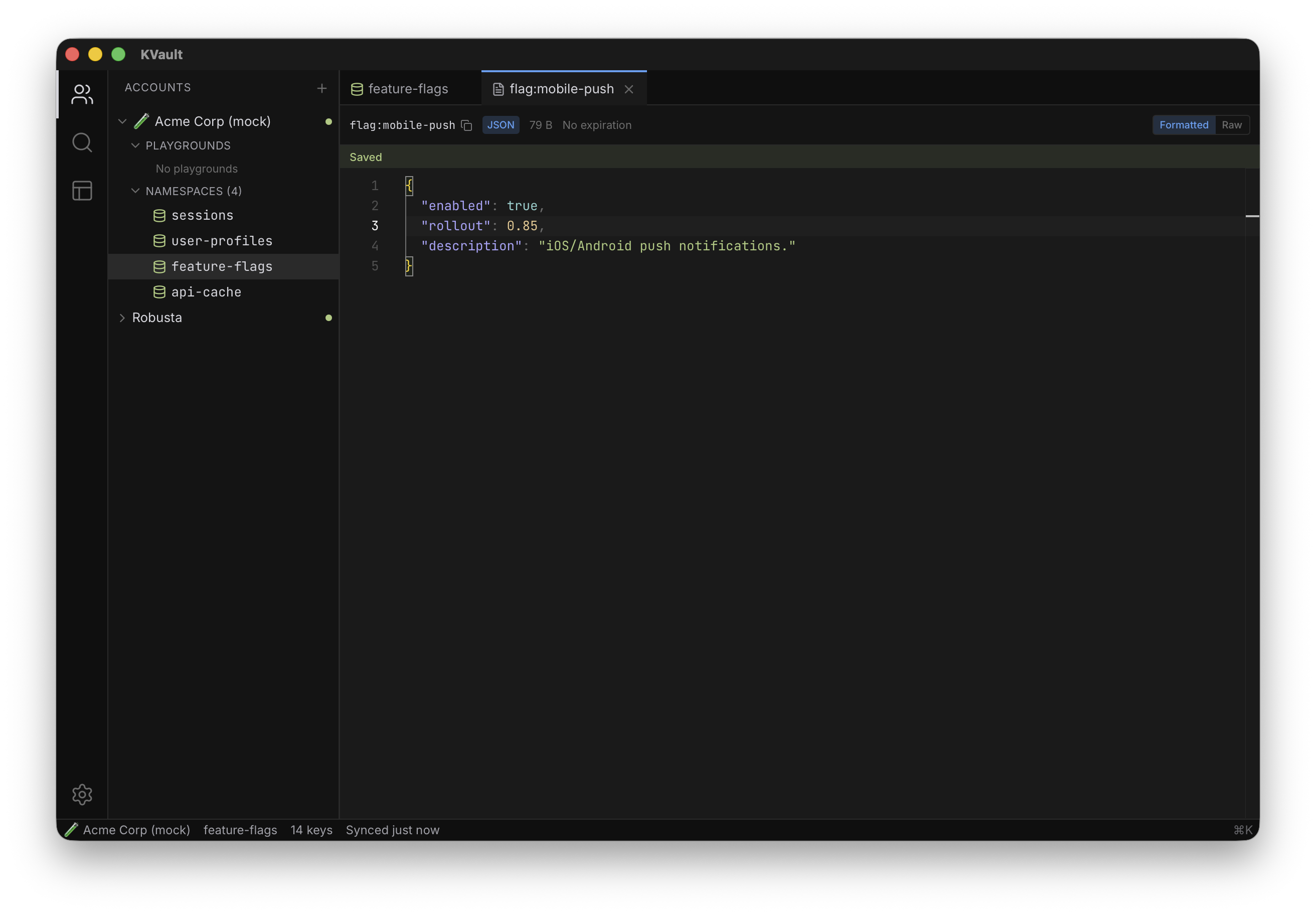
Save with Cmd S. KVault writes the new value to Cloudflare and shows a confirmation in the editor status bar. Failures surface inline with a clear error and leave your edit in place so you don't lose work.
Tips
- Editor colors follow the app theme — switch themes and the editor updates too.
- If a value turns out to be binary, KVault falls back to the hex viewer automatically — no manual toggle required.
- Use Cmd N from a namespace to create a new key with the editor pre-focused and content-type pre-detected.
- Need to bulk-update? Export to JSON from bulk operations, edit in your editor of choice, and import back.