Features
TTL Visibility
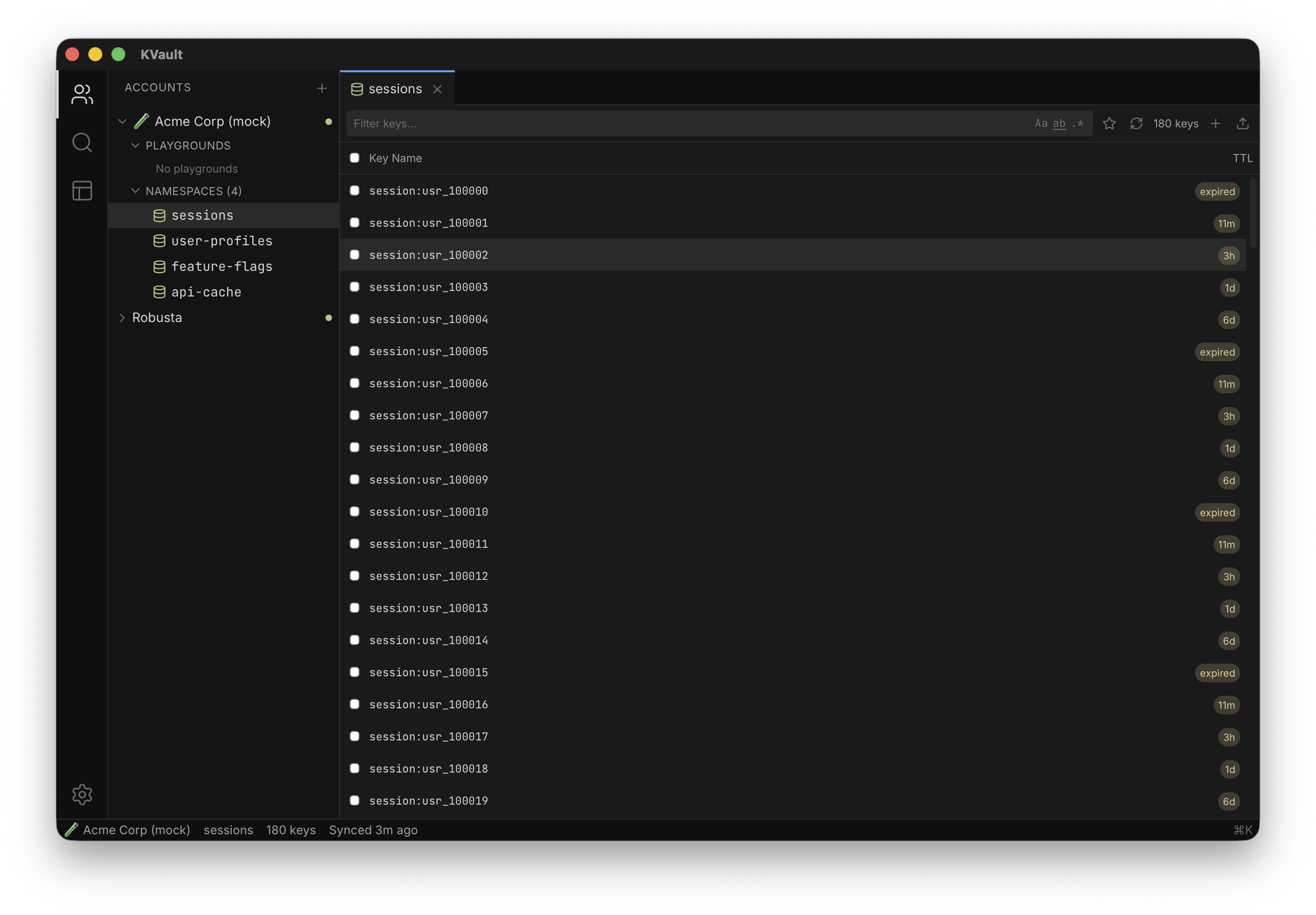
Every key shows its time-to-expiration right in the list — 5d, 2h, 30m, or expired. Set TTL when creating or updating keys, not in a config file.
Overview
Cloudflare Workers KV supports per-key expirations, but the dashboard
hides them behind clicks. KVault surfaces TTL as a first-class column
in every key list. Short durations render as 30m or
2h, longer ones as 5d, and anything past
its expiration shows as expired so you can clean it up.
The TTL column sorts alongside the rest of the key metadata, which means you can filter a namespace for only keys that are about to expire, export them, and decide whether to refresh them or let them drop. No more surprise cache misses because a feature flag quietly expired over the weekend.
How to use it
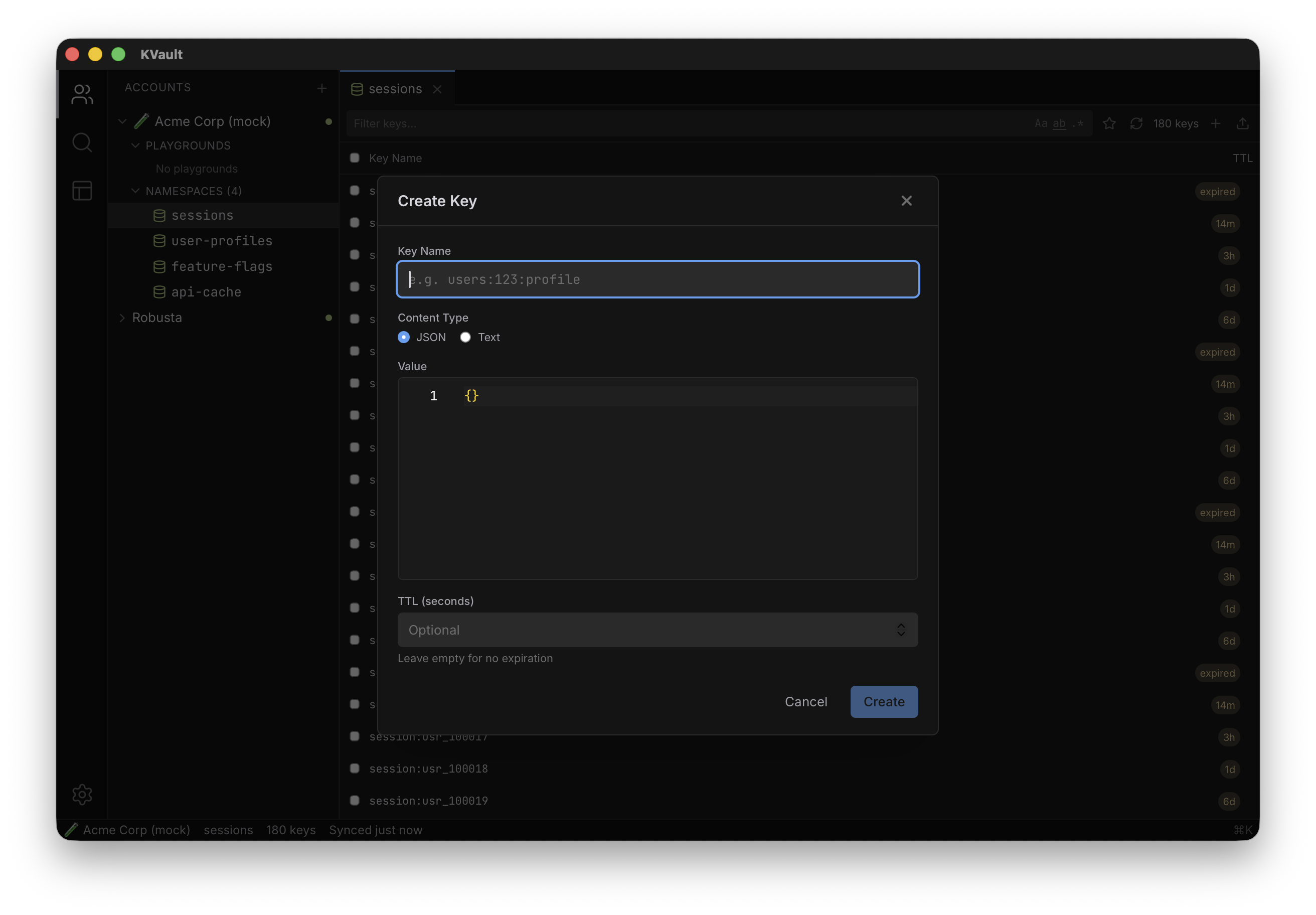
Create a new key with Cmd N. The Create Key dialog detects whether your pasted value is JSON or plain text automatically and exposes an optional TTL field — enter a value in seconds, or leave it blank for a key that never expires.
To change the TTL on an existing key, open it in a tab and edit the TTL from the key's metadata panel. Saving refreshes the list immediately. Use bulk export to audit TTLs across a whole namespace at once.
Tips
- Expired keys remain visible until Cloudflare prunes them; use them as a to-do list for cleanup.
- The command palette exposes "Create key" directly, so you can jump straight into a TTL-aware create flow.
- If you manage TTLs in bulk, export to JSON, edit the
expirationfield in your editor, and re-import via bulk operations. - Combine with filters to focus only on a subset (e.g. session keys) when auditing TTLs.